Overview
Moderation for every streamer can vary, such as shoutouts, timing out, bans, unban requests, category or title changing and many more.
This blog aims to provide you with the correct set of tools to do the basics of moderating. This includes moderating for your own streams.
Show Mod Icons
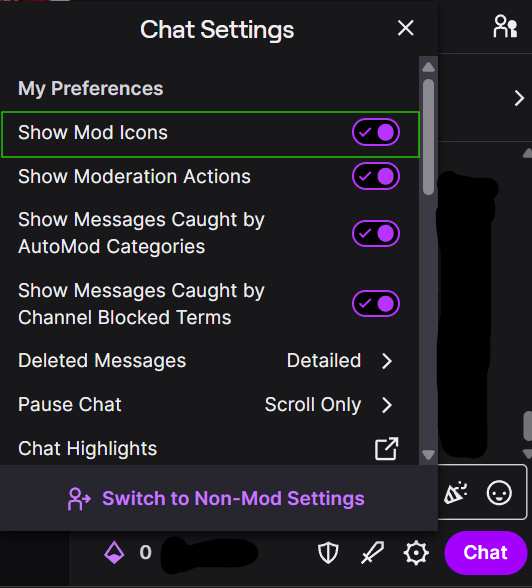
Open Twitch chat -> Click on the gear icon next to the Chat button -> Switch to Mod Settings -> Show Mod Icons.
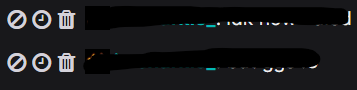
This will allow yourself to quickly ban or timeout the user, or delete the message with a click of a button. Be cautious and try not to misclick.
Slash Commands
There are a few slash commands that every moderator should know:
| Command | Description |
|---|---|
/ban [user] (reason) | Ban the user, optionally specify a reason. |
/timeout [user] (reason) | Timeout the user, optionally specify a reason. |
/shoutout [user] | Shoutout a user. |
/user [user] | View information about users. Click to view message history, mod actions and mod comments. |
/followers (duration), /followersoff | Adjust followers mode, including how long users must follow the channel. |
/subscribers, /subscribersoff | Turn subscriber-only mode on or off. |
/pin [message] | Pin the message. |
/announce [message] | Announce the message. |
Shoutouts
Every channel does its shoutouts differently, it is better to clarify with the streamer.
Sometimes streamers want anyone within the streamer’s friend group to be shouted out and not have to do it themselves, whereas some streamers don’t, otherwise it may encourage streamers to promote themselves without further engaging with the chat. Both are valid.
Usually, it is common to shoutout streamers who raid the streamer. You can do so with /shoutout [user] but channels often have !shoutout [user] or !so [user] commands instead.
Share Ban Info
Twitch Dashboard Share Ban Info
Streamers can turn share their ban info list (amongst streamer friends) to let each other be aware of certain chatters that could be problematic.
With these turned on, banned users from other streams will be highlighted to your (streamer’s) chat. They can either be monitored (default) or restricted from chat.
Be aware that false positives may happen, users banned on another channel may be a mistake, so either check the mod comments or check with the other streamer via DMs.
Rule Enforcement
There are MANY reddit posts about “what should I do with this problematic Twitch chatter?”, the most frequent and valid answer is to just ban them.
Banning users may feel pretty bad, or the streamer may worry about their chat engagement. However, despite being counter-intuitive, enforcing your boundaries and banning problematic chatters actually IMPROVE the chat, but making other chatters feel more comfortable without the presence of negativity.
If a user is experiencing bad mental health but making it a problem for EVERYONE in the community, it is not your responsibility as moderators or streamers to manage it.
Twitch has a crisis prevention resource page, which is a good reference: https://safety.twitch.tv/s/article/Crisis-Prevention
Unban Requests
Go to moderation view of your own stream at twitch.tv/moderator/{YOUR USERNAME HERE} and you can see any unban requests that may be there.
You can see banned users’ request to be unbanned, with their reason, along with their chat history to help you make a decision whether to unban or deny their requst.
Some streamers have streamed their own unban requests, and it can be a pretty entertaining YouTube video!
Final Thoughts
Not only should Twitch moderators understand how to moderate the chat, but streamers themselves must be able to do so themselves, especially if the streamer does not pay their moderators.
Moderate your own chat, draw your own boundaries, timeout or ban problematic chatters or chatters that make you uncomfortable.